NBA Form Tracker: Google Sheets Script
A free script that pulls the last 5 games for any two NBA teams directly into Google Sheets. Player stats organized by metric, plus Last 5 averages and medians: the way sportsbooks think about it.
What you get
- Last 5 completed games for any two NBA teams, regular season or playoffs
- Stats for every player who played: Points, Rebounds, Assists, 3-Pointers, PTS+REB+AST, Steals, Blocks, Turnovers, Minutes
- Organized by metric (like a sportsbook), not by player
- Last 5 Average and Last 5 Median columns for quick reference
- W/L result and score for each game
- One-click refresh to pull fresh data any time
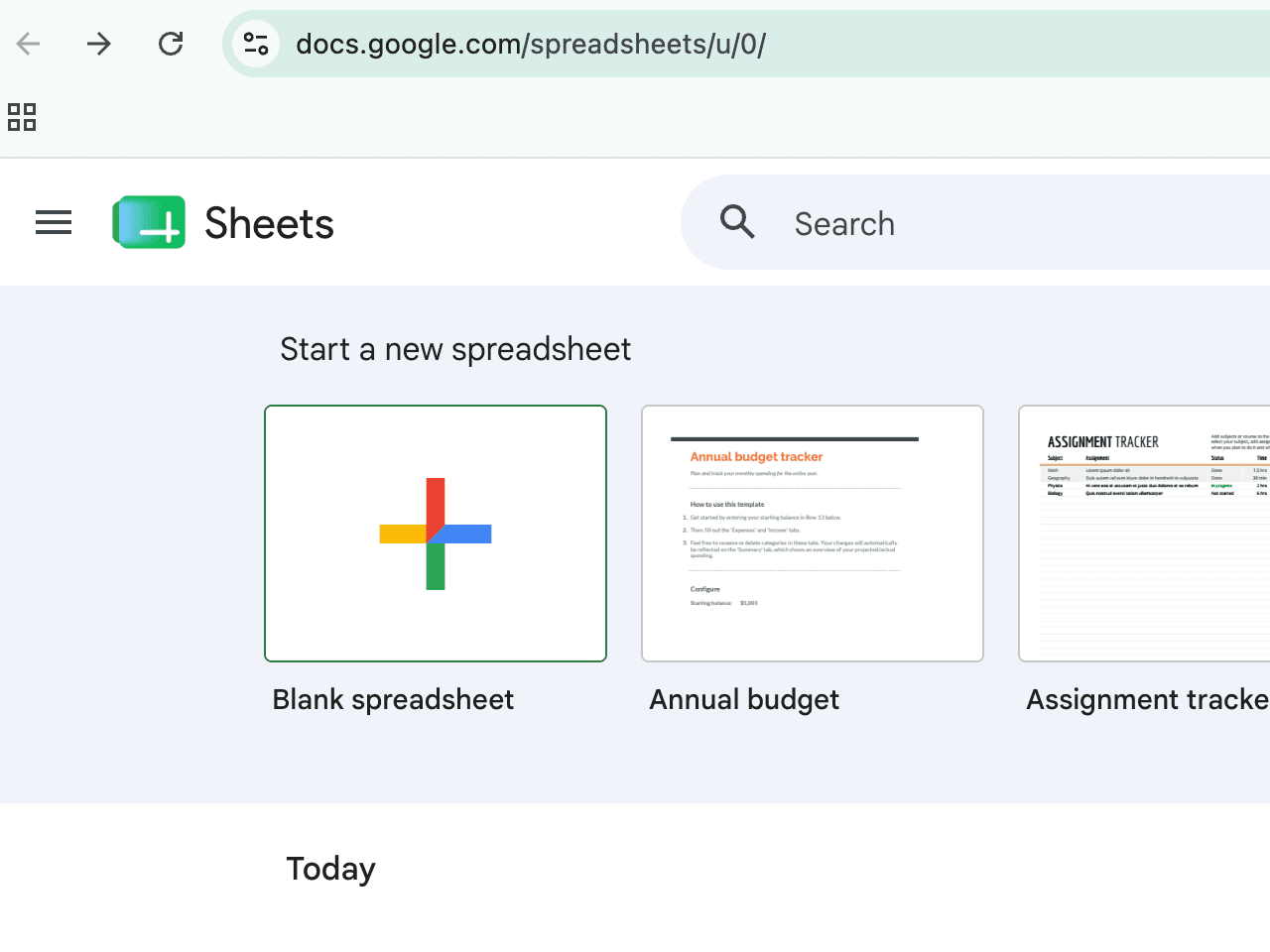
Open Google Sheets and create a new spreadsheet
Go to sheets.google.com and click the "+" button to start a blank spreadsheet. Give it any name, "NBA Tracker" works well.
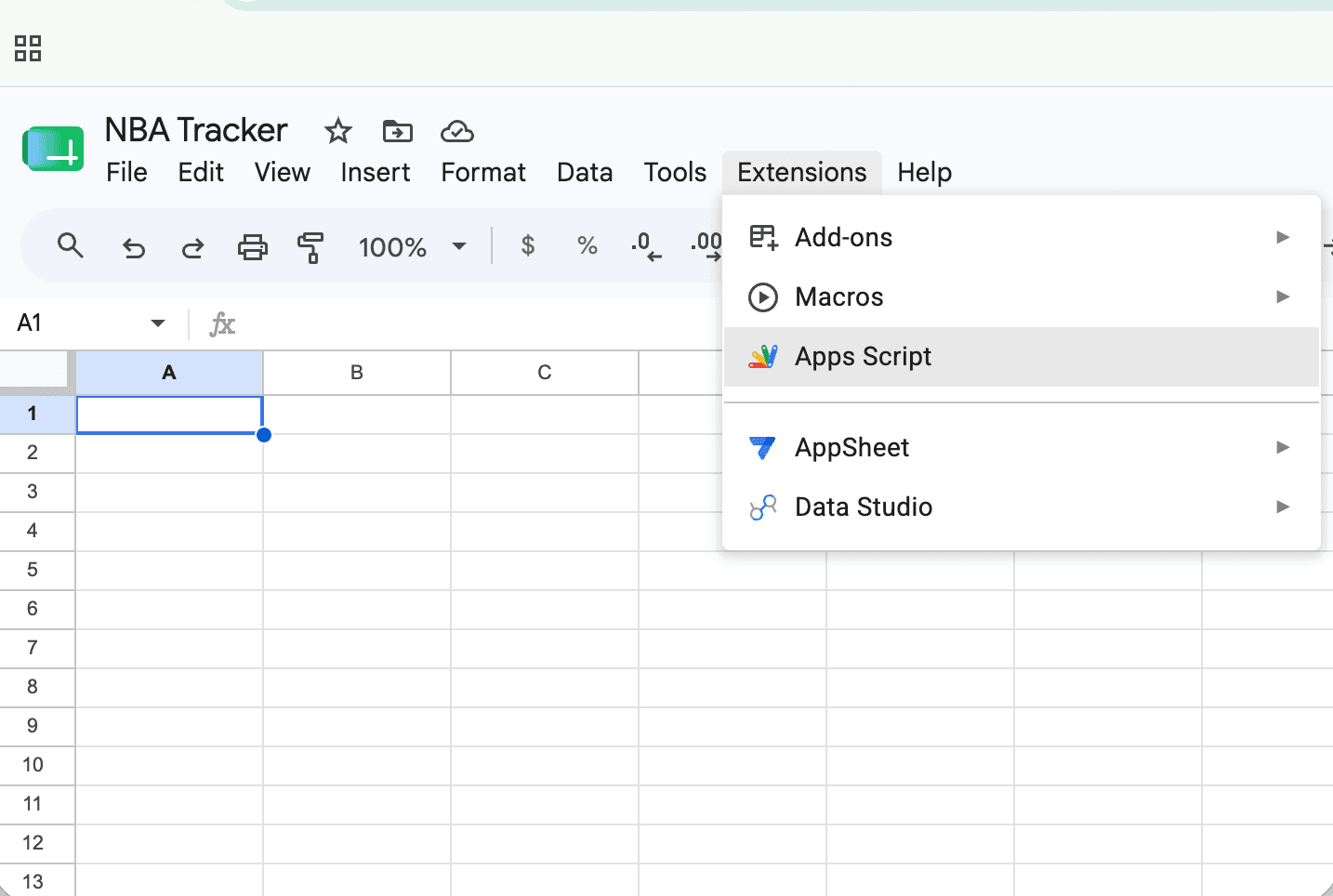
Open Apps Script
In the menu bar, click Extensions → Apps Script. A new tab will open with the script editor.
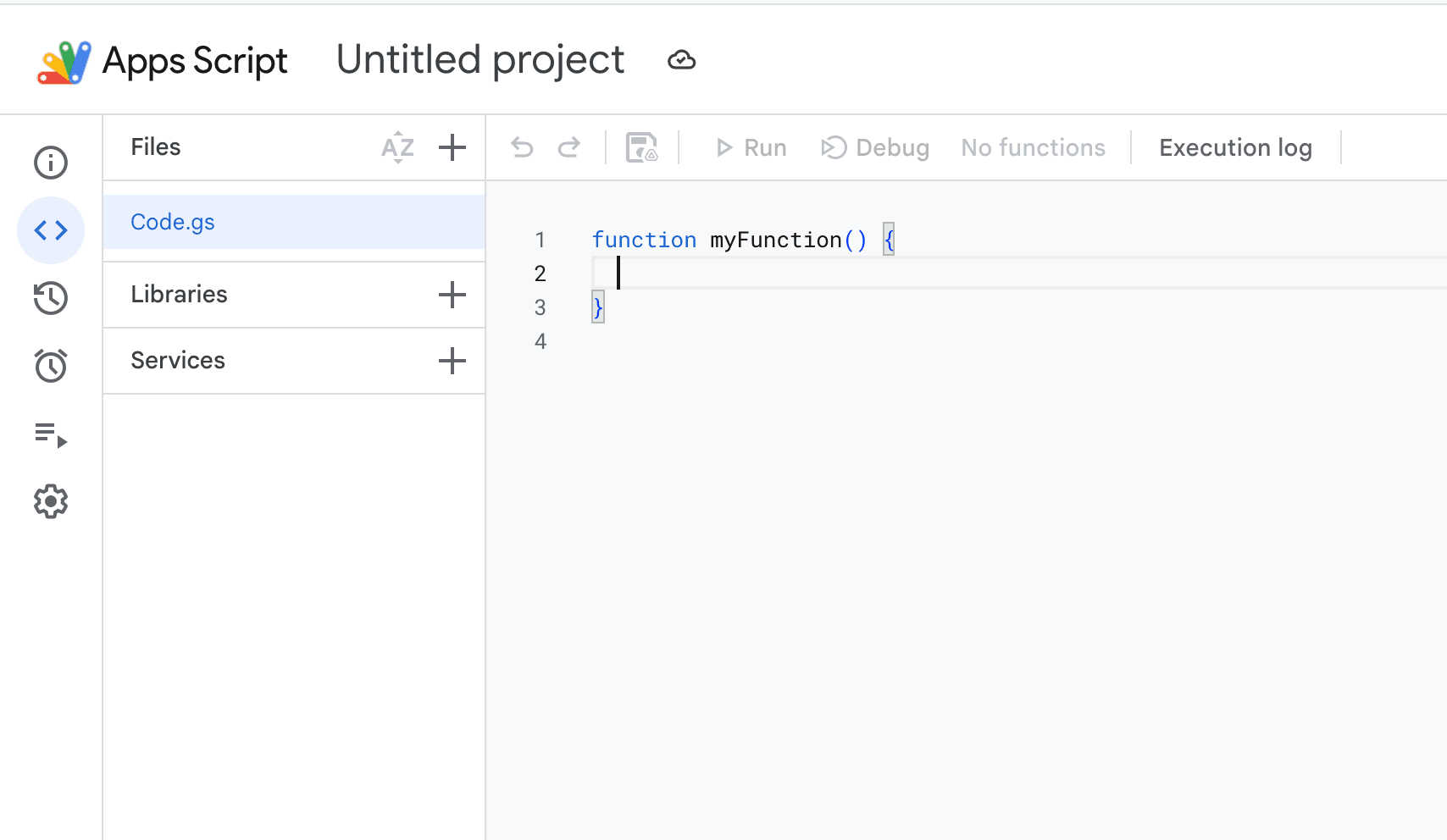
Copy the script
Click "Copy script to clipboard" below. You'll paste it into the editor in the next step.
Google Apps Script
nba-form-tracker.gs
Loading…
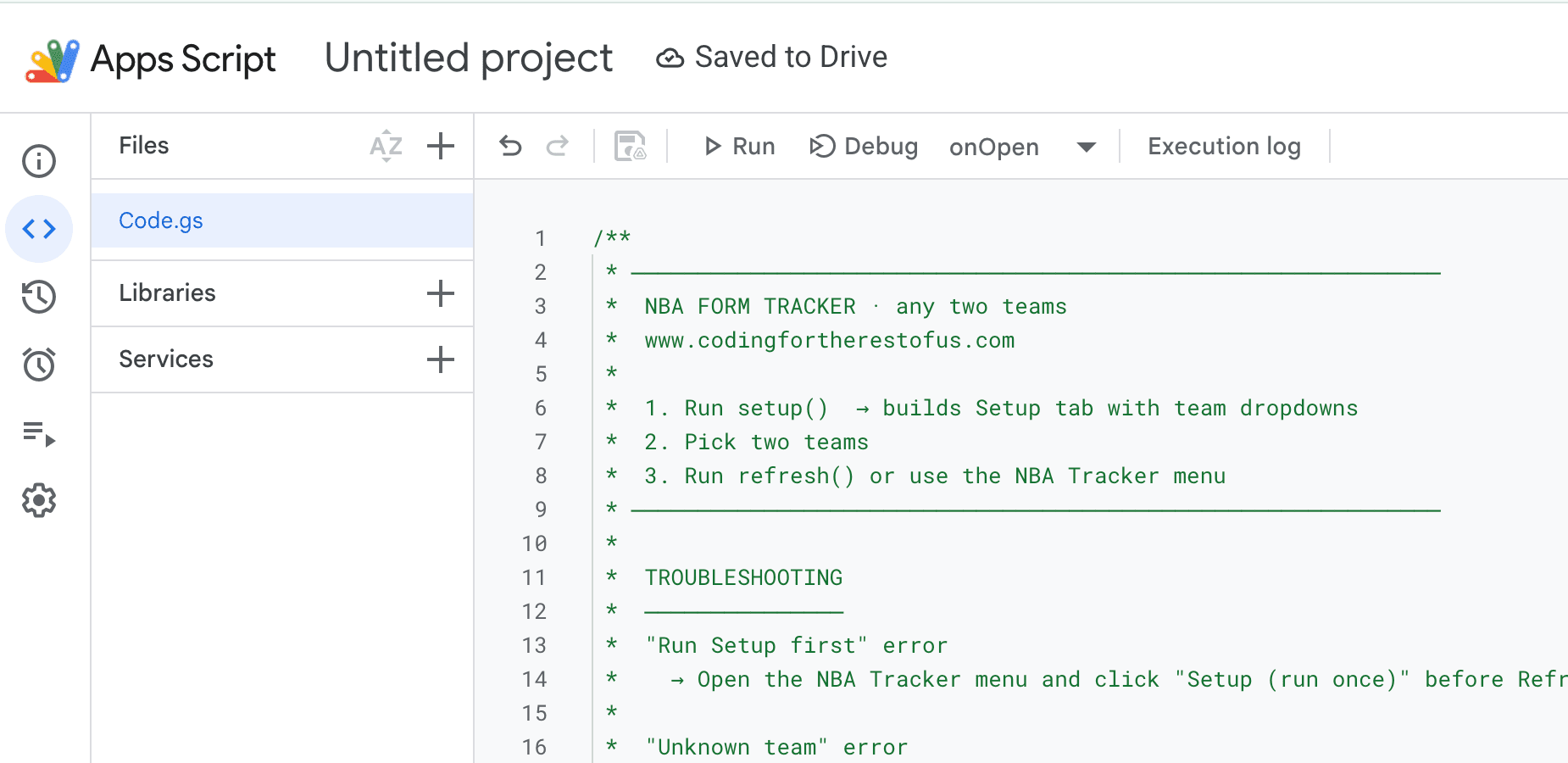
Clear the default code and paste
Select all the existing code in the editor (Cmd+A on Mac, Ctrl+A on Windows), delete it, then paste. You should see the full NBA Tracker script appear.
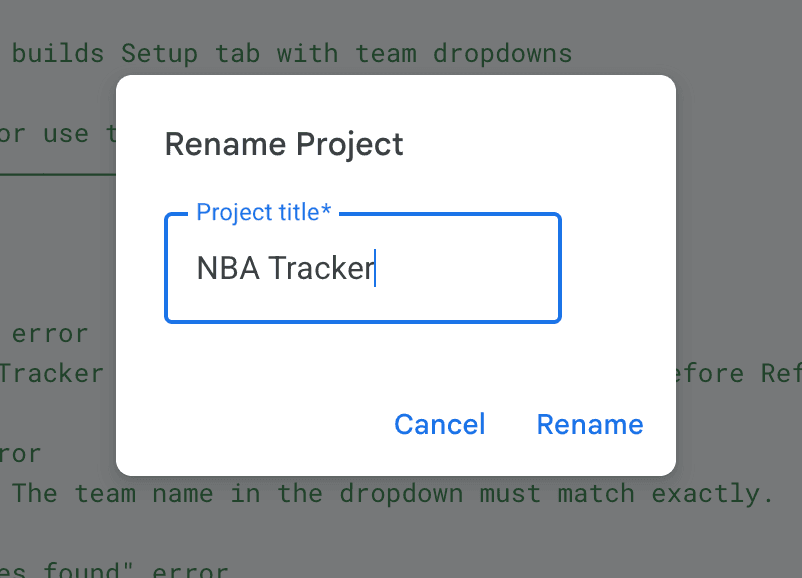
Save and name the project
Click the save icon or press Cmd+S / Ctrl+S. A "Rename Project" dialog will appear, type "NBA Tracker" and click Rename.
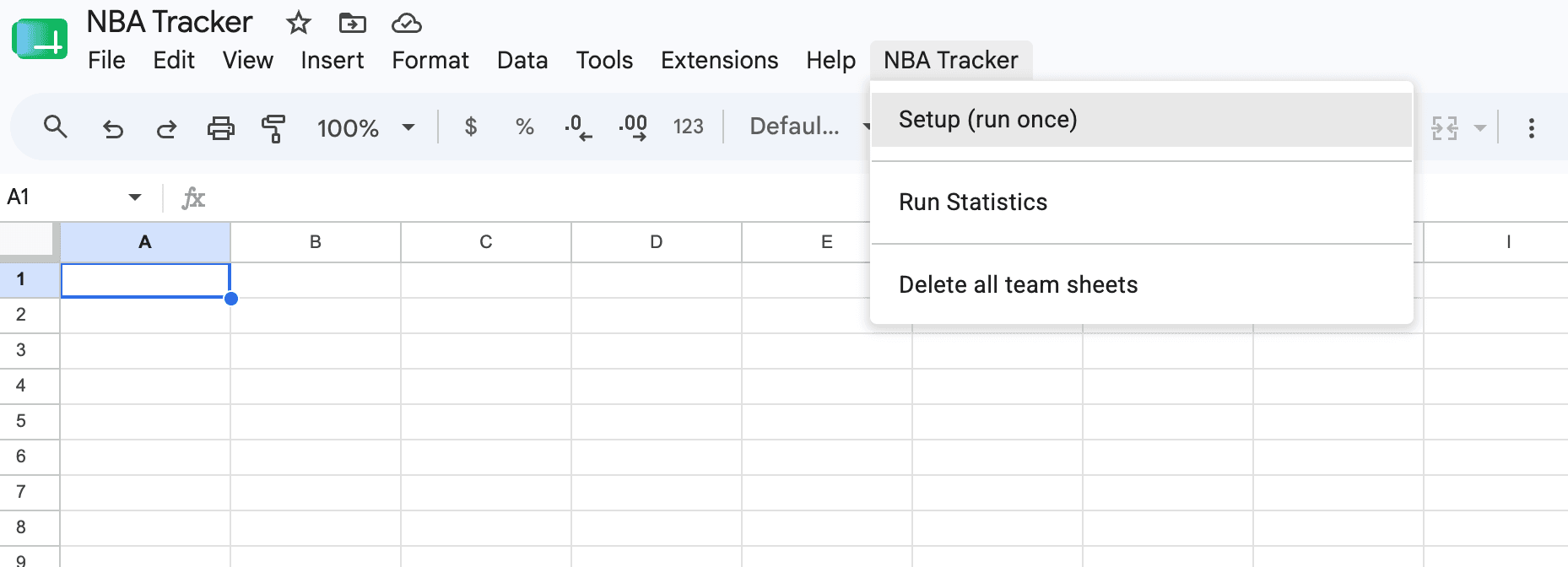
Go back to your spreadsheet and run Setup
Switch back to your Google Sheets tab and refresh the page. A new "NBA Tracker" menu will appear. Click NBA Tracker → Setup (run once).
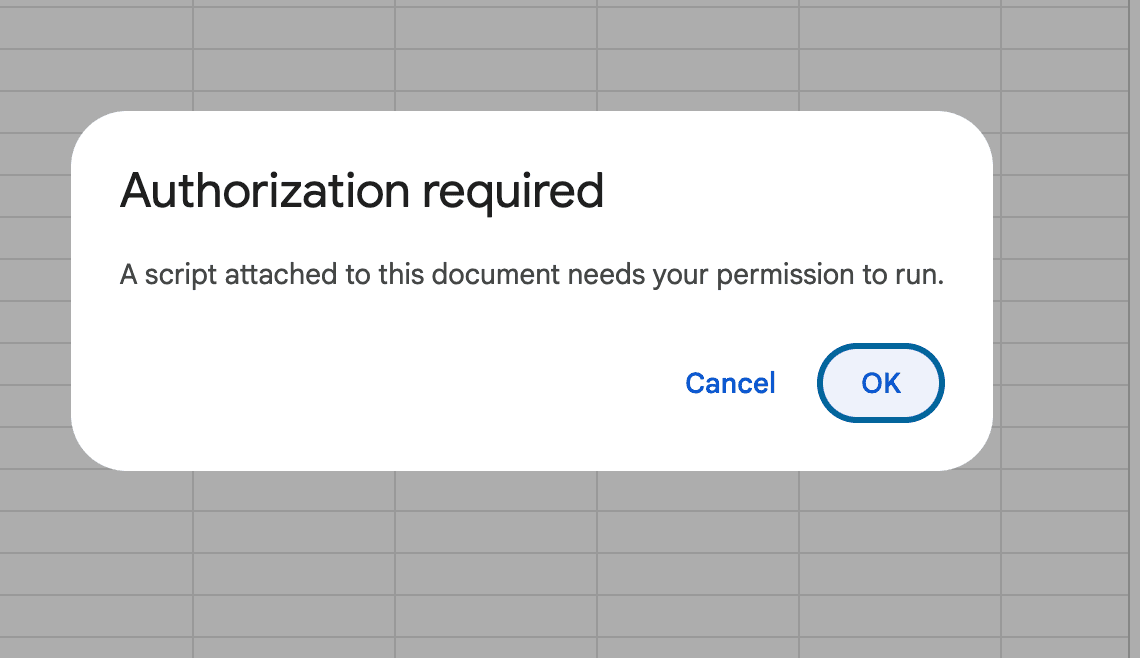
Click OK on the Authorization prompt
Google will show a popup saying "Authorization required: a script attached to this document needs your permission to run." Click OK to continue.
This happens the first time only. The script only talks to the ESPN API, it does not read or modify your Google account.
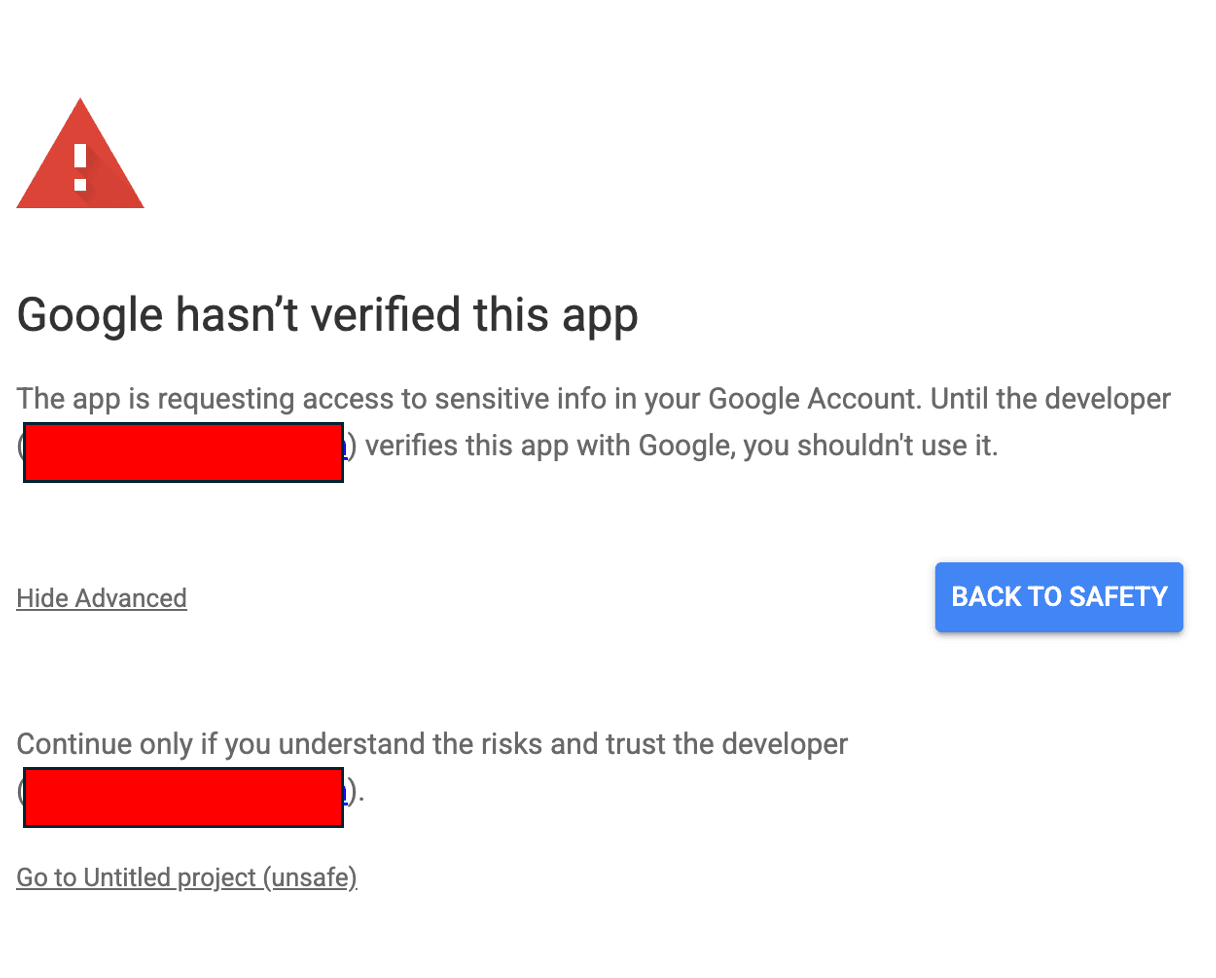
Proceed past the "Google hasn't verified this app" warning
Google shows this warning for any personal script. Click "Advanced" at the bottom left to expand options, then click "Go to [project name] (unsafe)" that appears below it.
This is standard for self-written Apps Scripts. The script only fetches public ESPN data, nothing sensitive is accessed.
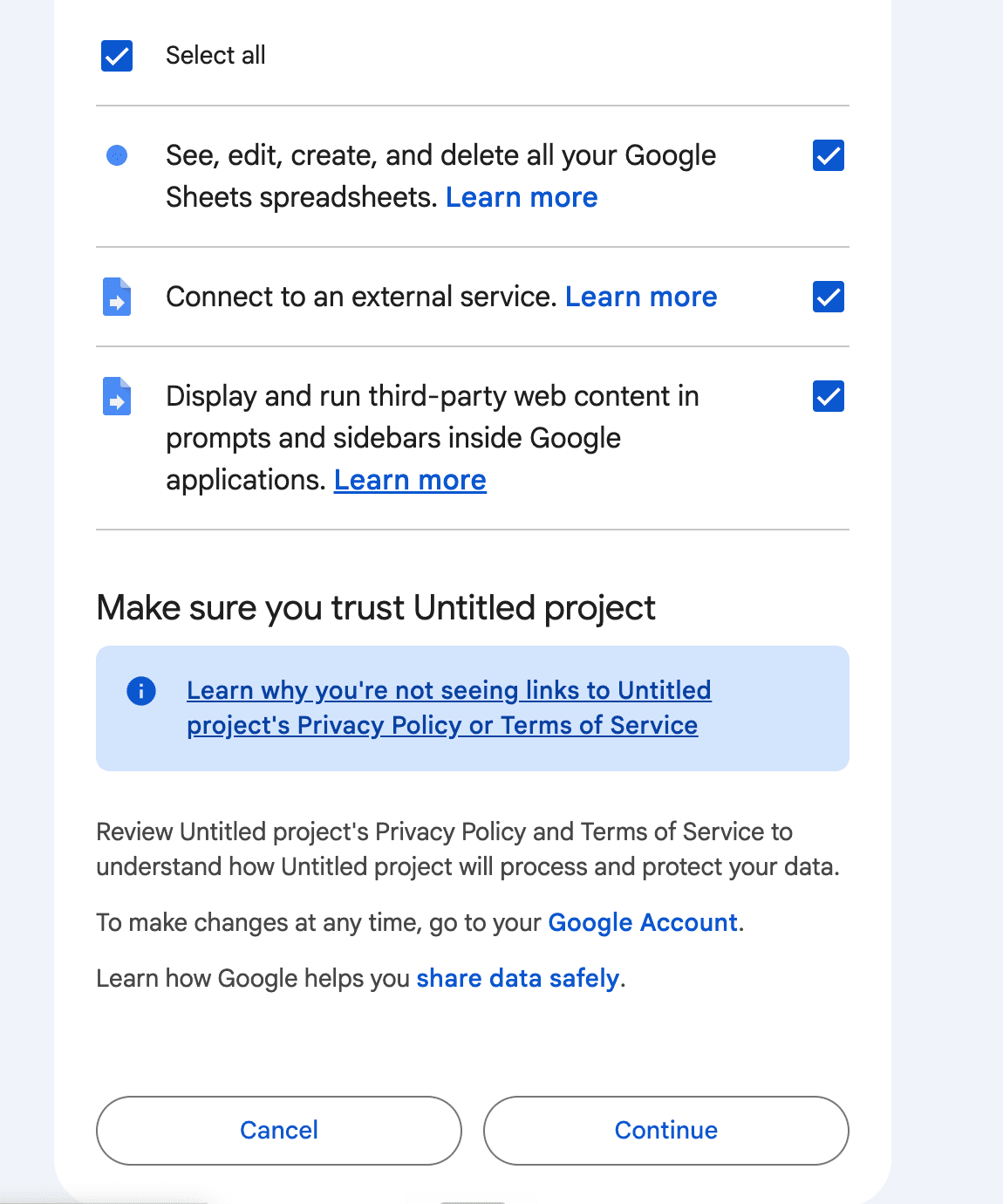
Review permissions and click Continue
Google will show the permissions the script needs. Click Continue to grant access. Setup will then run automatically.
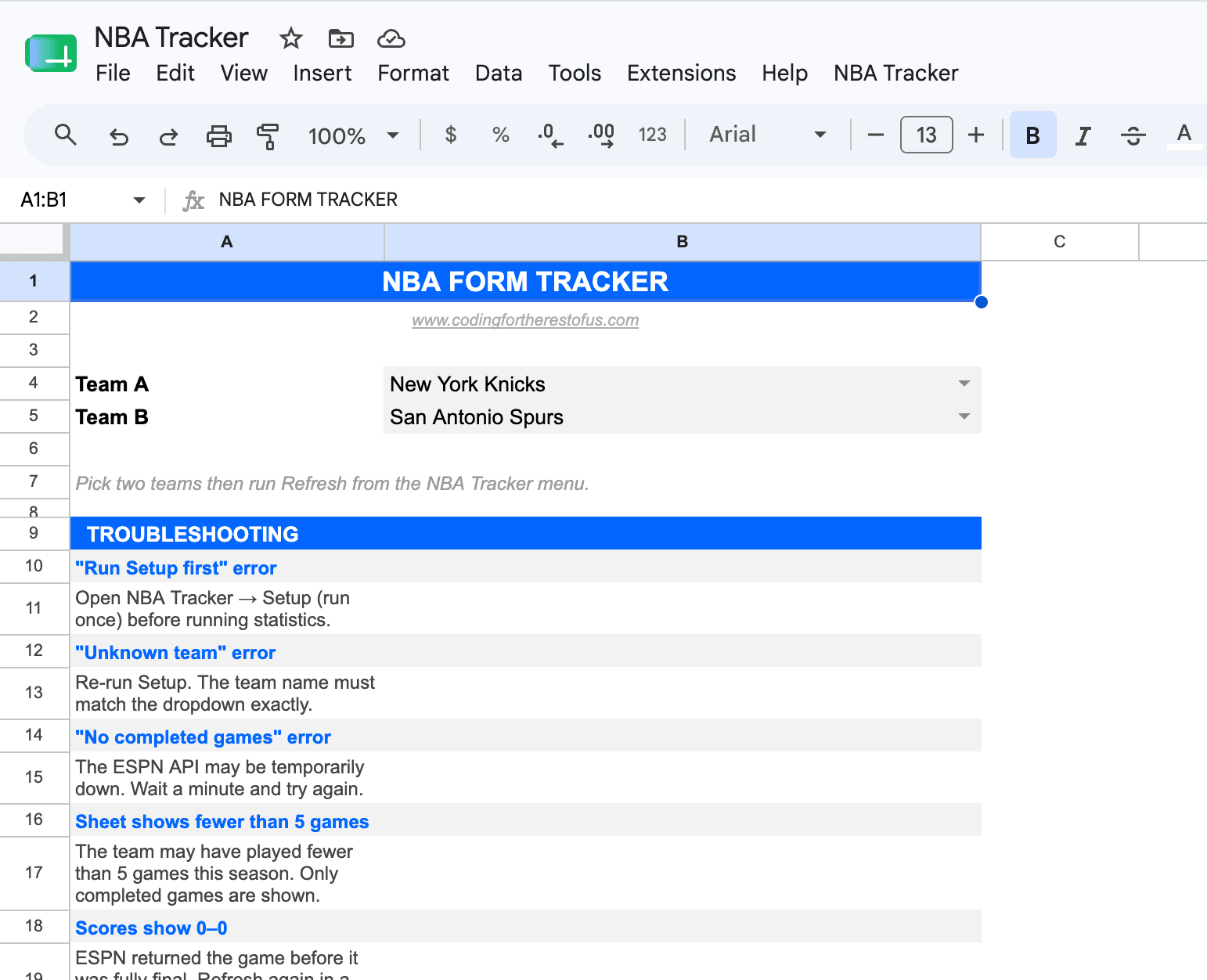
Pick your two teams
After Setup finishes, a Setup tab will appear in your spreadsheet. Use the dropdowns in rows 4 and 5 to pick Team A and Team B. All 30 NBA teams are available.
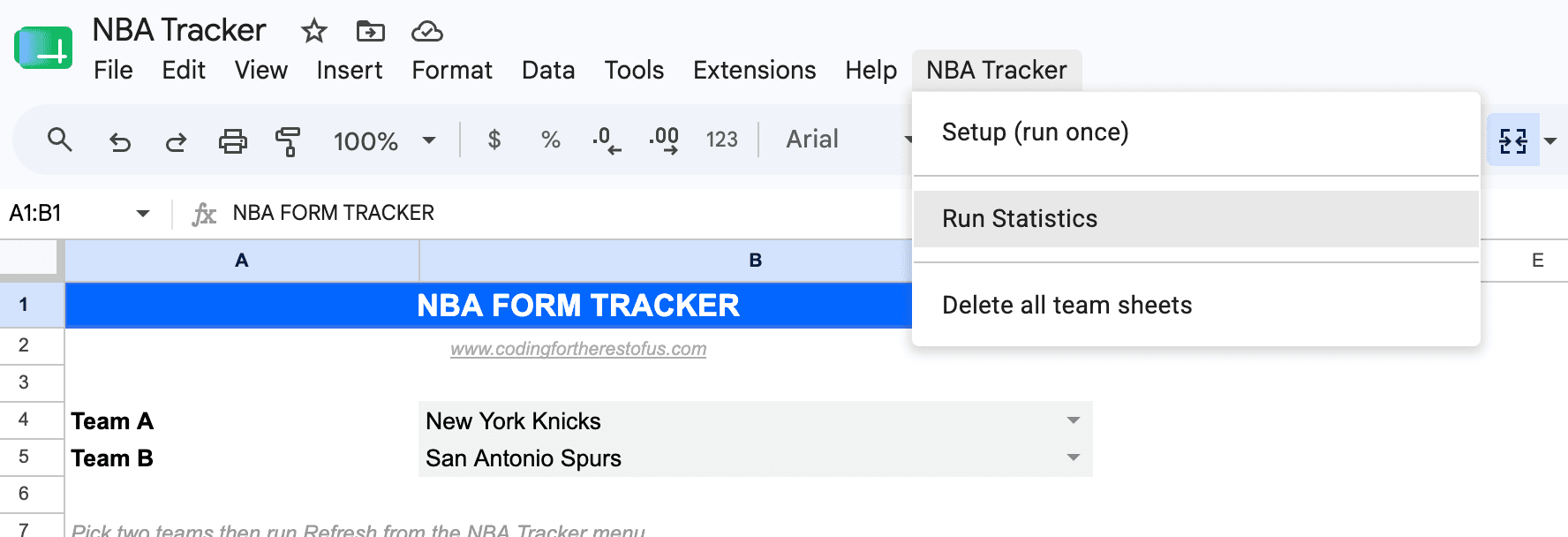
Run Statistics
Click NBA Tracker → Run Statistics. The script fetches the last 5 completed games for each team from the ESPN API. This takes about 30–60 seconds.
Don't close the tab while it runs, each game requires a separate API call.
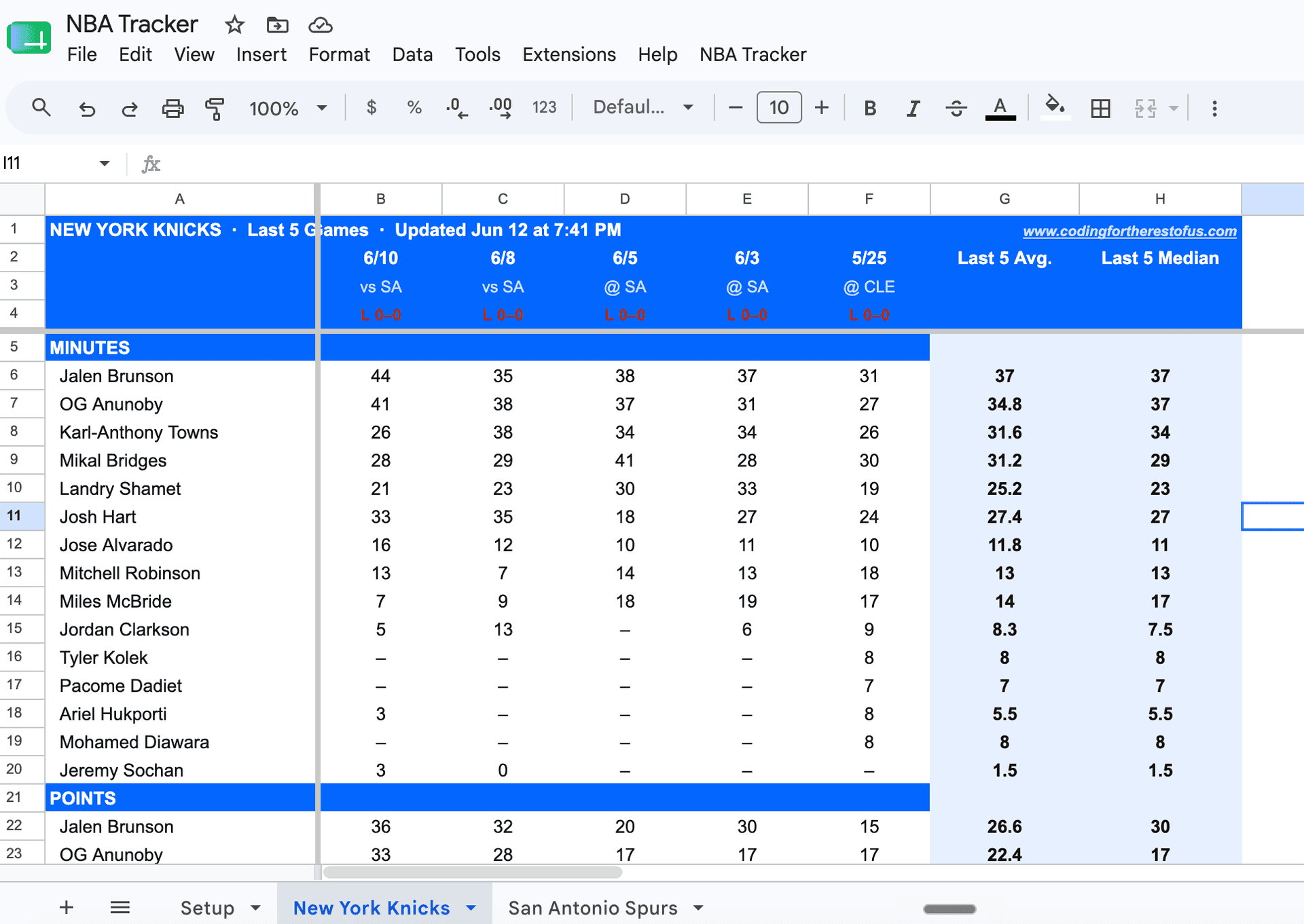
Read your results
Two new tabs appear, one per team. Stats are organized by metric with every player listed underneath. The last two columns show the Last 5 Average and Last 5 Median.
"Run Setup first" error
Open the NBA Tracker menu and click "Setup (run once)" before running statistics.
Sheet shows fewer than 5 games
The team may have played fewer than 5 games this season (e.g. early playoffs). Only completed games are shown.
Scores show 0–0
ESPN returned the game but scores weren't finalized yet. Wait a few minutes and refresh.
Script times out
A full run usually takes about 5–10 seconds. This should never happen, but if it does, just run Statistics again, it will re-fetch everything fresh.
Stats showing "–" for a player
That player did not play (DNP) or logged 0:00 minutes in that game.